
 Diesen Artikel auf Deutsch lesen
In this article, you'll learn everything about using Komfortkasse with Shopware (Version 6).
Before you begin, read the article “Getting Started: Setup and Connection to the Shop.”
Setting Up the Shopware 6 API
To allow Komfortkasse to access the Shopware store, you must create an integration under Settings > System > Integrations:
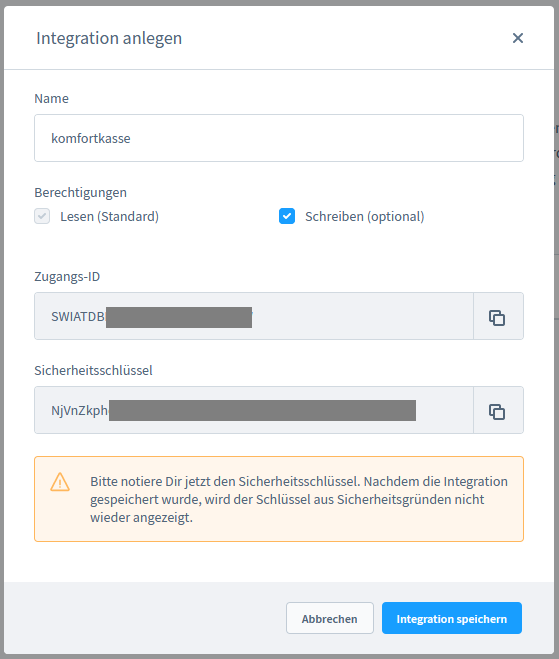
You can name the integration “Komfortkasse,” for example. Enable write permissions by checking the “Write” checkbox ( in newer versions of Shopware, enable “Administrator Access” instead of the “Write” checkbox).
More information on required roles/permissionsWe recommend using administrator rights for the integration. If a custom role is used, at least the following permissions are required:
order: update is only required if Komfortkasse is to change the order status. |
Save the integration by clicking the " Save Integration" button.
Enter the Access ID and Security Key in the Shop settings in your Komfortkasse merchant area. To do this, select the shop in the Settings - Shops menu. In the API Access Settings section, click Edit settings and then enter the data:

Then click " Save settings."
Once the API credentials are saved, Komfortkasse can retrieve other necessary settings from the shop, such as available payment codes, Sales Channels, and order status. While the data is being retrieved, the ID or technical name of the corresponding entry is displayed (e.g., “open”). You may also see a corresponding indicator next to the respective field:

API settings
If the data has been successfully retrieved, the correct labels (e.g., “Open”) will be displayed instead of the IDs:

Komfortkasse supports the payment types Prepayment, Invoice, and Cash on Delivery. If you do not use all three payment types in your shop, click “Deactivate” or “Activate” for the respective payment type:

Once the desired payment types have been enabled, click “Edit settings” again. You can then configure the settings for payment types, Sales Channels, and statuses.
For all settings that use data from the store, you can click the “Reload values” button to retrieve the data from the store again (e.g., if a new payment type has been added to the store).
Sales Channels
If there is only one Sales Channel (or if all existing Sales Channels are to be used in Komfortkasse), no selection needs to be made here.
Otherwise, you can select the desired Sales Channels here:
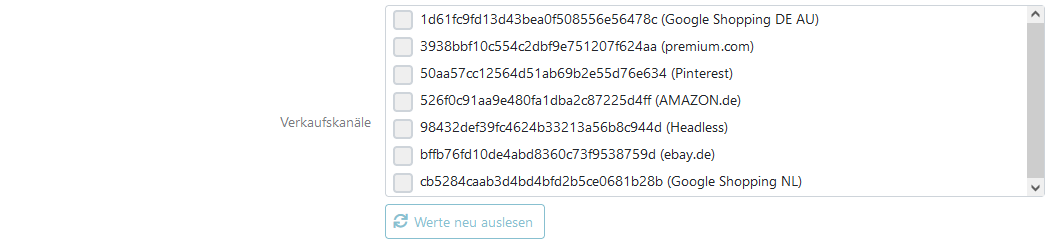
If Sales Channels represent different shops (i.e., with their own URL, name, or logo), a shop must be created in Komfortkasse for each Sales Channel. For each shop, the assigned Sales Channel must then be selected here.
The following settings are described using prepayment as an example. The settings for invoice payment and Cash on delivery are similar; the differences from prepayment are described at the end. Even if you only use invoice payment in your online store, you should read the following descriptions.
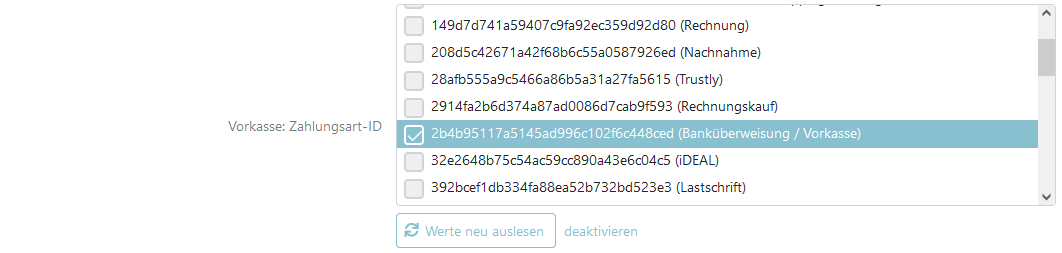
Payment type ID
Here, you select which Shopware payment type should be used in Komfortkasse for “prepayment.” Normally, this is the “Bank Transfer / Prepayment” payment type available by default in Shopware:
Order Status and Payment status for Open orders
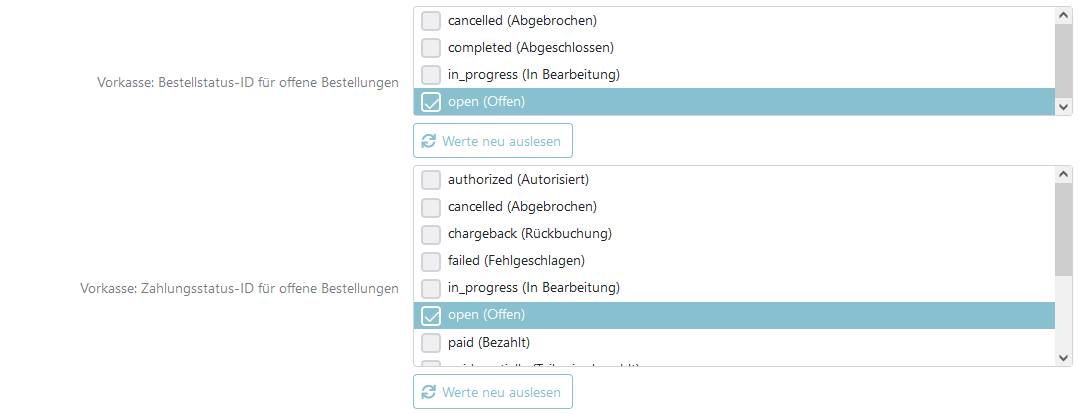
Here you select which orders Komfortkasse considers “open” and for which it expects a payment. You can specify either the order status, the Payment status, or both statuses. (For example, if only the order status is specified, the Payment status is ignored.)
In most cases, for prepayment, the order status “Open” and/or the Payment status “Open” are specified. The payment statuses for partial payment and dunning levels are automatically considered open. You only need to enter additional statuses (e.g., “Reminder”) if your shop specifies them itself:
Payment status for Partially Paid Orders
Orders for which a partial payment is received are set to this Payment status in Shopware by Komfortkasse. (No order status can be selected):

Order Status and Payment Status for Paid Orders
Orders that have been completely paid in Komfortkasse are set to this status in Shopware by Komfortkasse. You can select an order status and/or a Payment status. For example, if you only want to change the Payment status but not the order status, select “Do not change” for the order status:

Order Status and Payment Status for Cancelled Orders
If an order is cancelled in Komfortkasse (e.g., because no payment has been received for an extended period), this status is set in Shopware. You can select an order status and/or a Payment status. For example, if you only want to change the Payment status but not the order status, select “Do not change” for the order status:

Order Status and Payment Status for Refunded Orders
If a refund is executed for an order in Komfortkasse, this status can be set in Shopware. You can select an order status and/or a Payment status. For example, if you only want to change the Payment status but not the order status, select “Do not change” for the order status:

Payment status for Dunning levels 1, 2, 3, ...
When Komfortkasse sends payment reminders for an order, the payment status can be set in Shopware. These settings are optional. The fields appear based on the number of payment reminders configured. The field for Debt collection appears only if you use Debt collection.

Payment status for Debt collection
If the integrated Debt collection feature in Komfortkasse is used and an order has been transferred to Debt collection, the following Payment status is set in Shopware.

(Debt collection for orders with the “Prepayment” payment type is normally not possible, but there are exceptions where this may be the case.)
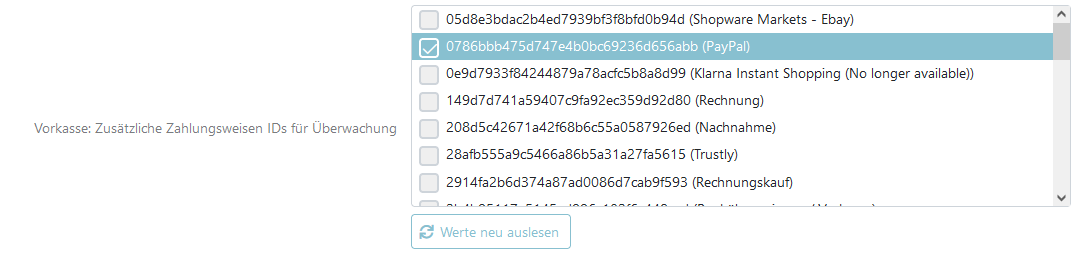
Payment Methods for Monitoring
If monitoring of other payment codes is used (optional), the payment codes to be monitored are selected here.
Settings for Invoice Payment
The same settings are available for invoice payment as for prepayment, with the exception of the payment methods for monitoring. There is also one additional difference: If no payment is received for an order, it is not cancelled but marked as overdue. Technically, this is the same process, but in practice it usually triggers different follow-up actions: While an order with prepayment can simply be cancelled if no payment is received, an overdue order with invoice payment usually must be manually processed or, for example, forwarded to Debt collection.
Settings for Cash on Delivery
The same settings are available for cash on delivery as for invoice payments, with the following restrictions:
- Pre-collection letters are not available
- Debt collection is not available
Settings for Documents
Komfortkasse automatically processes documents such as invoices and Credit Notes from Shopware. For example, Invoice numbers are automatically retrieved from invoices.
You can specify document types or user-defined fields from Shopware, separated by commas:

Document types or user-defined fields for invoice numbers: Enter the technical names of the document types or the names of user-defined fields from the order, separated by commas. Komfortkasse uses these numbers as invoice numbers. Default: invoice, storno, credit_note, zugferd_embedded_invoice, zugferd_embedded_cancellation_invoice, zugferd_embedded_credit_note
Document types for invoice cancellations: A cancellation of this type voids the invoice to which it refers. Neither the Invoice number nor the cancellation number is carried over. Default: storno, zugferd_embedded_cancellation_invoice
E-invoices (ZUGFeRD/XRechnung): Invoices, cancellations, and Credit Notes that Shopware creates only as XML files (e.g., for government agencies) are automatically handled by Komfortkasse in the same way as the corresponding documents. This requires that the base type (e.g., invoice) or the PDF variant (e.g., zugferd_embedded_invoice) be entered. You do not need to add anything else. A plain XML file is not imported as an invoice PDF.
Import Tracking Code
If so, the tracking code is imported into Komfortkasse as a shipment number (delivery note number). This is useful, for example, when processing Cash on delivery payments.
E-mail address for invoices
If enabled, Komfortkasse uses the e-mail address from this plugin instead of the order e-mail address, provided the customer has one specified.
Metafield names for mail delivery
Name of a custom field in the order. If set to “true,” Komfortkasse will also send the invoice by letter as soon as the invoice PDF is available.
Transfer payment details to the shop
If this setting is enabled, Komfortkasse transfers details about incoming postings to a custom field associated with the payment transaction of the order in Shopware.
The data is specified as a custom field named “Komfortkasse” in the order’s transaction (order_transaction) and includes:
- amount – Order amount in the payment currency
- currency – Payment currency
- amountMissing – outstanding amount (0 if paid in full)
- reminderFees – Reminder fees incurred to date
- postings – List of received payments, each with the Posting date (postingDate), amount (amount), currency (currency), and Bank Fee (Bank Fee)
The data is always transferred along with a status update to the shop—that is, upon receipt of payment (partial or full), as well as in the event of a cancellation, refund, pre-collection letter, or debt collection.
As long as no payment has been received for an order, Komfortkasse accesses the shop in read-only mode. Nothing will be visible for the order at that point—this is not an error and does not indicate a missing setting. The data is updated with each subsequent partial payment.
Prerequisites:
A Payment status must be specified for the respective payment type (e.g., under “Order Status and Payment Status for Paid Orders”). If “Do not change” is selected throughout, the custom field will not be updated either.
In addition, the integration requires write permissions on ` order_transaction` ( see “More Information on Required Roles/Permissions” at the beginning of this article).
Connection
Once all API settings have been fully specified, the store can be connected to Komfortkasse. To do this, select the “Connect” action from the actions menu ≡.